VS Code 1.138 Agent Sessions and a Dev Container Hands-On
This morning I opened the release notes for VS Code 1.138, the tool I use most these days, and there wasn’t a single item about the editor or the terminal. VS Code is moving from editor to agents. It was Agents from top to bottom.
Right now my four workers (Codex, Claude, Gemini and friends) each sit in their own building. I run AIs in parallel, and sometimes one AI in parallel with itself. But to see who’s idle and waiting on me, I walk the buildings one by one. Each has its own toolbox (MCP, extensions, terminal) and its own way of asking “may I?” I’ve already unified the toolboxes myself. And now this VS Code update builds an “agent office” that puts all those workers under one roof?!
🎯 VS Code’s agent session features: what happened when I applied them
- 1.138 is an agent sessions release. Run an agent inside your project’s Dev Container instead of on your machine, use Codex on either a Copilot or a ChatGPT subscription, and let finished sessions clean themselves up.
- After turning on ten settings and running it for real, what I liked most was Dev Container: AIs working in parallel inside Docker, testing their results, and committing or opening a PR without touching my original code. Switching to Codex, though, sits behind Copilot Pro, which was a bit annoying.
- If you work alone on one task at a time you won’t feel much difference, but for a multi-agent setup where you supervise several AI workers at once, it’s clearly an attractive direction.
📋 What’s in the release
In one line: send the agent to the job-site container, let Codex hop between subscriptions, and tidy up finished sessions. Only the parts I actually tried:
| Feature | Setting | Status |
|---|---|---|
| Run an agent session inside the folder’s Dev Container | chat.agentHost.devContainer.enabled |
Gradual rollout (off by default) |
| Switch Codex between Copilot ↔ ChatGPT subscriptions without losing the conversation | chat.agentHost.codexAgent.enabled · chat.editor.codex.preferAgentHost |
Off by default on stable |
| Continue the same Codex session between the ChatGPT app and VS Code | (same as above) | |
| Create a PR from a session (title, description, draft, merge options in one form) | chat.agentMerge.enabled (Agent Merge only) |
|
| Suggest “mark as done?” once a session’s PRs merge | chat.agentSessions.archiveNudge.enabled |
Preview |
| Auto-complete / auto-delete after N days | chat.agentSessions.autoArchiveMergedSessionsAfterDays · ...autoDeleteArchivedMergedSessionsAfterDays |
Off by default |
| Local folders, GitHub and Cloud repos in one picker | sessions.chat.unifiedWorkspacePicker.enabled |
Experimental |
What makes all of this possible is something called the Agent Host Protocol (AHP) underneath. The agent harness (the wrapper around tools, approvals and sessions) runs in its own process, so every feature above only works inside the new “Agents window”. That is why almost every item in the notes carries an “(Agents window only)” tag.
Why did VS Code build an “Agents window” at all?
Before (running each app on its own):
 [Codex]   [Claude Code terminal]   [Antigravity]   [Copilot]
   Office A          Office B              Office C        Office D
   own tools         own tools             own tools       own tools
   own approvals     own approvals         own approvals   own approvals
        ↑                ↑                     ↑               ↑
        └──── me, walking office to office asking "done yet?" ────┘
1.138 (unified in the Agents window):
 Site office (Agents window)
 ┌ workers:        Copilot · Claude · Codex · Cloud   ← unified at once
 ├ one toolbox:    VS Code tools + extensions + MCP + git
 ├ one approval rule: Default / Allow all
 └ one board:      session list · badge · PR form · cleanup
   ↑ two windows, or the ChatGPT app, see the same worker (AHP)
The scattered workers now sit in one office, with one toolbox, one approval rule and one board. That’s why Dev Container, the PR form, session cleanup and the badge all live in that room.
So when is this better? When you have three or four workers on different tasks at once and you’re the supervisor, and when you need the same MCP servers and the same approval rules across vendors. A company that has to enforce one policy layer lands here too (that’s why the bundle has dozens of chat.agentHost.otel.* and *.policy settings).
The other way round: if you do one thing at a time, or you need each app’s own features (Claude Code plugins, the Codex app’s computer use, Antigravity’s browser), opening each app like today is still better. I’m still in the second camp, but I can feel the first one getting closer.
🐳 So what is a Dev Container?
In one line: a Docker container that holds the whole environment a project needs to run. You write down which OS, which language at which version, and which tools go in it, all in one file, .devcontainer/devcontainer.json, and VS Code builds that container and lets you work inside it.
The reason it exists is the classic “works on my machine” problem. This blog alone needs Node 22, another project uses Node 18, and my work PC and home PC never have quite the same things installed. Put the environment in a file and every PC builds the same container, so the difference disappears. CI like GitHub Actions runs in an Ubuntu container anyway, so you also get to test in the same place your deploy runs.
Originally this was Dev Containers: Reopen in Container, which switches the whole VS Code window into the container. In 1.138 the window stays local and only the agent goes into the container. Your file explorer and terminal stay on your PC, but the npm run build the agent runs uses the container’s Node.
A devcontainer.json has about five things in it: which image to start from (image, Microsoft ships prebuilt ones per language), a command to run once right after the container is created (postCreateCommand, usually dependency install), container ports to expose to your browser (forwardPorts), folders that should live in a separate volume instead of your PC’s folder (mounts), and extensions to auto-install inside (customizations.vscode.extensions).
🛠️ Turning it on and testing it
I added the ten relevant settings to settings.json and fully restarted VS Code. (Some experimental options like codexAgent.enabled don’t apply on a reload; a full restart is required.)
"chat.agentHost.devContainer.enabled": true,
"chat.agentHost.codexAgent.enabled": true,
"chat.editor.codex.preferAgentHost": true,
"chat.agentHost.allowSignedOutWhenUsable": true,
"chat.agentMerge.enabled": true,
"chat.agentSessions.archiveNudge.enabled": true,
"chat.agentSessions.autoArchiveMergedSessionsAfterDays": 7,
"sessions.archiveSessionConfetti": true,
"sessions.showApplicationBadge": true,
"sessions.chat.unifiedWorkspacePicker.enabled": true
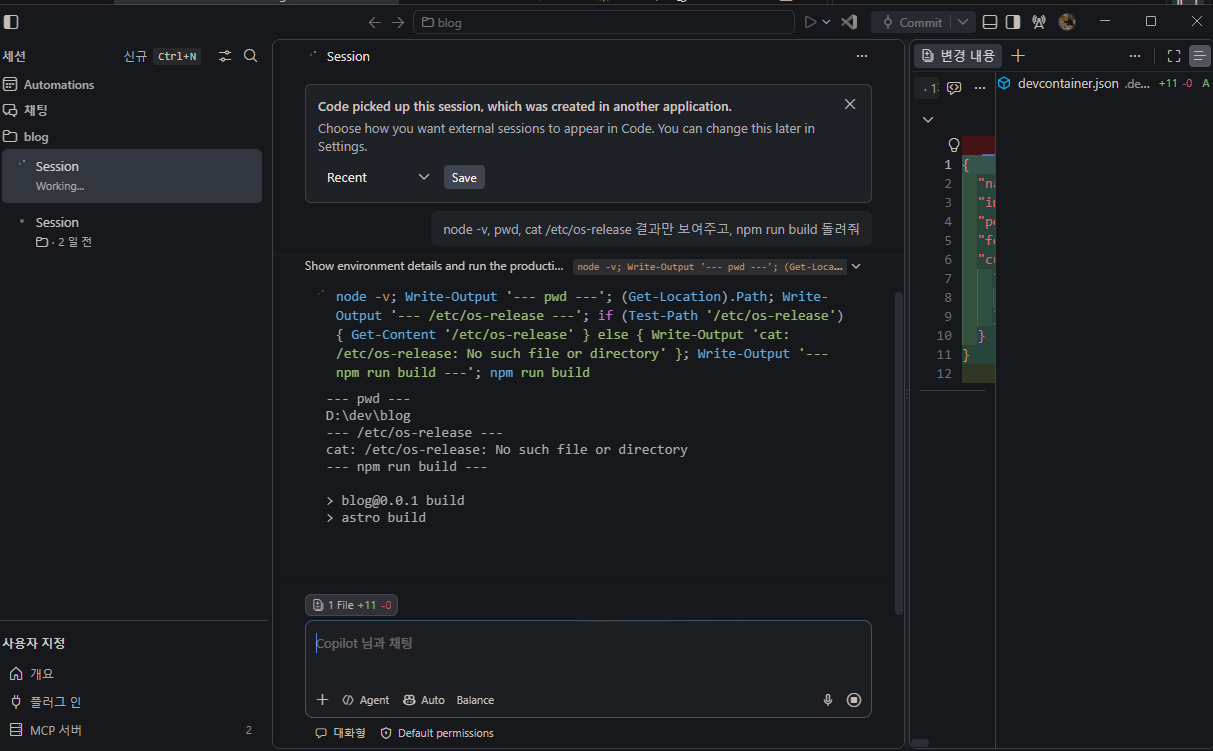
Step 1 — Open the Agents window ✅
Ctrl+Shift+P → Open Agents Window opens the dedicated window.
The moment it opened, a banner at the top picked up the Claude Code session I’d been running in an external terminal and pulled it in, which was pretty interesting to watch.
Step 2 — Connect a Dev Container session ✅
For the test I wrote a new .devcontainer/devcontainer.json in the blog repo.
The single most important part here is the mounts setting! I left it out at first, and the npm ci that ran inside the container overwrote my local Windows node_modules with Linux packages, breaking the local build. Keeping node_modules in a container-only volume is what stops the local side from getting hurt.
{
  "name": "blog (Astro)",
  "image": "mcr.microsoft.com/devcontainers/javascript-node:22",
  "mounts": [
    "source=blog-node_modules,target=/workspaces/blog/node_modules,type=volume"
  ],
  "postCreateCommand": "sudo chown node:node node_modules && npm ci",
  "forwardPorts": [4321],
  "customizations": {
    "vscode": {
      "extensions": ["astro-build.astro-vscode"]
    }
  }
}
I got lost twice on the way here.
- The hidden submenu: in the new-session list you have to click the
>arrow at the far right of the folder name to get theUse Dev Containeroption. Clicking the folder name itself just starts a local session. - Stuck waiting for approval: container sessions ask for approval on every terminal command. I watched “Thinking” for 14 minutes, decided it had hung, and hit ⏹. The agent host log showed that went in as a reject.
03:15:21 Tool started: bash
03:15:21 Requesting confirmation for tool call   ← waiting for approval
04:35:57 Aborting session… Permission response: result=reject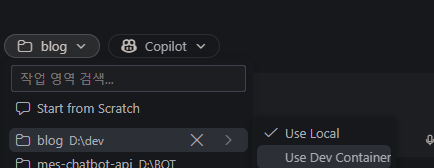
Switching permissions to Allow all and starting a fresh session is what finally made it run.
| Check | Local session | Dev Container session |
|---|---|---|
node -v |
v22.18.0 | v22.23.2 |
pwd |
D:\dev\blog |
/workspaces/blog |
/etc/os-release |
missing | Debian GNU/Linux 13 (trixie) |
| Shell | PowerShell | bash |
npm run build |
OK | OK — all 73 pages built |
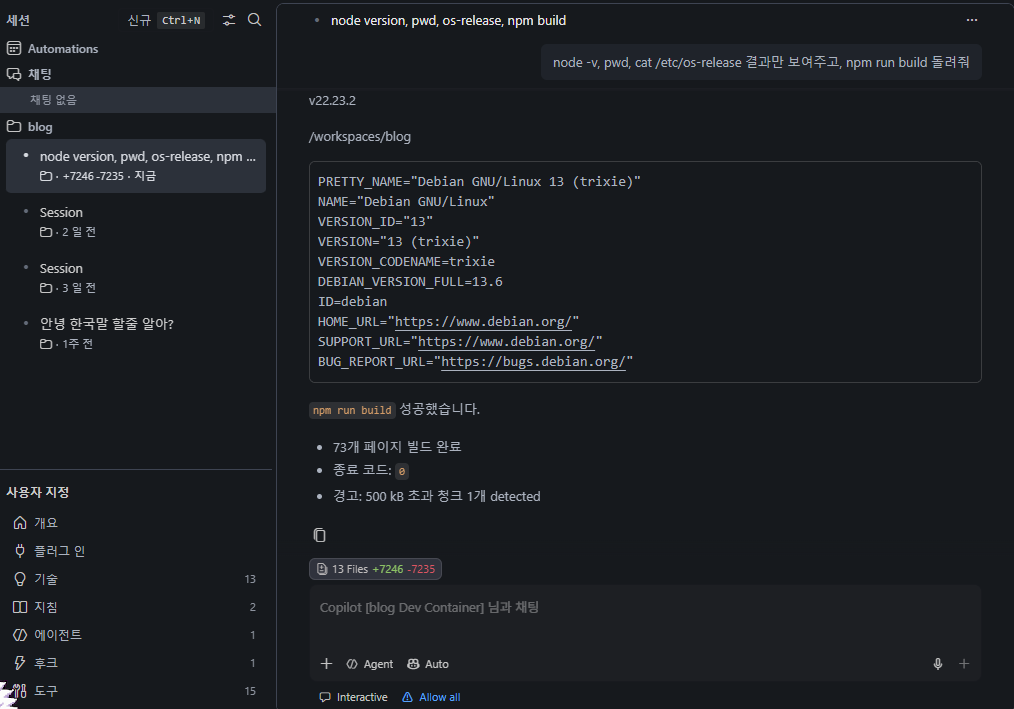
The Node versions differ, so the build ran in the container, not on my PC. Editor and explorer stay local while only the agent sits in the container, and in practice that’s cleaner than I expected. The old way (Dev Containers: Reopen in Container) moved the whole window into the container so you lost sight of your other local folders; this one doesn’t have that problem.
Step 3 — Switching Codex ❌ part of Copilot Pro
I opened the Copilot ˅ dropdown: Copilot, Claude, Codex, Cloud, and every one except Copilot wore an “Upgrade” badge. The bundle string reads [Upgrade to GitHub Copilot Pro] to use this agent. The release notes say “use Codex with a Copilot or a ChatGPT subscription”; they don’t say the harness itself is locked on the Free plan.
Pro is the key that unlocks the Codex harness; model usage is billed separately. Pick a ChatGPT-side model and it counts against your ChatGPT subscription; pick a Copilot-side model and it comes out of Pro’s monthly credits. The Student Pack includes Pro for free, so I tried that first, but the student Pro doesn’t unlock third-party agent access. Paid Pro and student Pro apparently aren’t the same thing.
❓ Questions I had along the way
Q. Do I have to open the Agents window every time?
For these features, yes. But Use Dev Container sticks to the folder once chosen; every new session in that folder runs in the container until you pick Use Local.
Q. Is running in a Dev Container even worth it? For the blog, honestly no. It earns its keep when ① the agent does something risky (it can’t touch folders outside the container, your PATH, global npm or credentials), ② you want to verify in the same environment as CI (Ubuntu) before pushing, since Linux is case-sensitive and things that work on Windows can break on deploy, ③ projects need different tool versions.
Q. So when is the Agents window for? Does it run in Docker? Do I pay for Codex too? Things I got mixed up along the way.
| What I thought | Verdict | What the Agents window actually does |
|---|---|---|
| Agents window = for supervising several workers in parallel | ✅ | |
| It’s for when I need to design a harness | ❌ | The harnesses are prebuilt by VS Code. You pick one |
| Agents window = runs in Docker | ❌ | Local by default. Dev Container is one option inside it |
| Copilot is the main thing, so pay for Pro | ✅ | The Student Pack Pro is free, but it doesn’t unlock the Codex/Claude agents |
| I’d have to pay for Codex separately too | ❌ | Pro is the key that unlocks the Codex harness. Model usage bills to Copilot credits or a ChatGPT subscription you already have |
| Codex history is stored locally | ✅ | JSONL under ~/.codex/sessions/. Per the chat.agentHost.codexAgent.codexHome description it’s the same folder the CLI and app use, which is what makes app ↔ VS Code hand-off possible |
✅ What I got done with this
- Open the Agents window, see the external session (terminal Claude Code) in the list
- Understand Dev Containers and run
npm run buildin a session, confirmed it built on the container’s node - Unified workspace picker, Mark as Done
- Cross-check the release notes’ setting IDs against the bundle, found two wrong
📝 Three-line summary
- The core of VS Code 1.138 is the “Agents window” for managing several AI agents in one place, plus its Dev Container integration.
- Send only the agent into a Docker container and you can test and build without touching your PC.
- Not much for people who do one thing at a time yet, but a pretty big update for anyone running several agents!
💡 Closing
An editor’s release notes with not one line about the editor. It’s pretty clear where VS Code is heading. They’ve started treating agents not as a chat box but as several workers you supervise. Next up, I want to try contributing to an open-source project through a Dev Container and see what the Agents window means in that setting.